







Skip to content

Instructions: Creating a configurable product


This guide shows you how to assign a customized XcalibuR configuration to a Shopware product.

Step 1: Opening the product in the Shopware backend

After opening the product in the store's backend, you will find the "Activate XcalibuR configurator for this product" slider under the "General" tab on the "XcalibuR configuration" tab to activate the XcalibuR configurator settings at product level.

csm_configurator_activate_slider_2a2a6aa689

If you click on this, new setting options open up.

Step 2: Opening an empty XcalibuR configuration

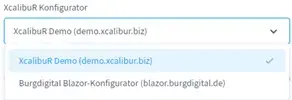
After opening the XcalibuR configurator settings, you will now see the "XcalibuR configurator" drop-down menu under "Settings". Here you can now select your previously created Xcalibur configurator.

csm_configurator-selection_f462a2a20a

Once you have selected the XcalibuR configurator, click on the "Open empty configurator" button.

csm_Leeren_Konfigurator_oeffnen_32e1295976

If you click on this button, an XcalibuR configurator will open without a specific preselection.

Step 3: Select manufacturer, catalog and model

Click on the "Add" button to open the list of manufacturers available in your XcalibuR configurator. Confirm your selection by clicking on the desired manufacturer.

csm_Konfiguration_hinzufuegen_68214981b3
csm_manufacturer_select_7cafdaa016

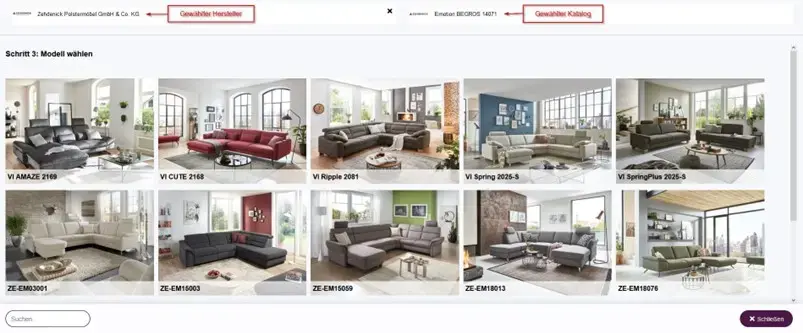
Then select the desired catalog and model using the same principle:

csm_catalog_select_fdc1a9ba88
csm_Modell_waehlen_d41d156c9b

Step 4: Select elements

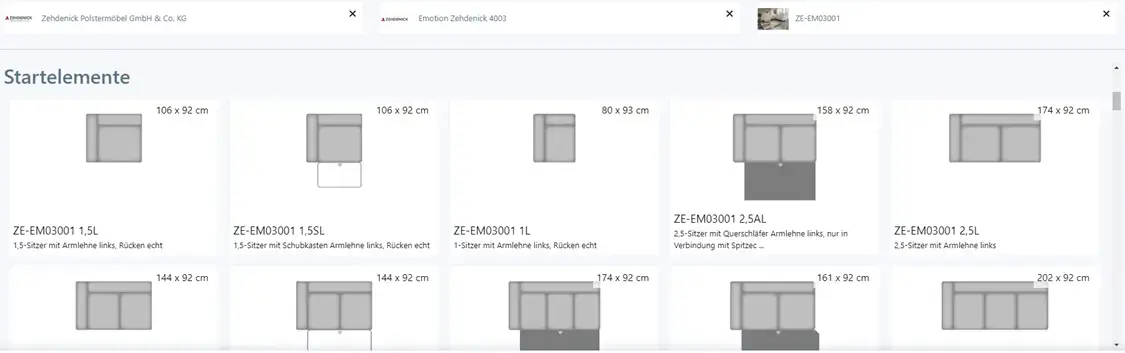
You will now see all available elements for the model. In most catalogs, these are sorted according to "start elements", "intermediate elements" and "end elements". There may also be "uncategorized elements".

csm_Startelemente_2310ad6827

Select the desired first element for your configuration using the "Select" button.
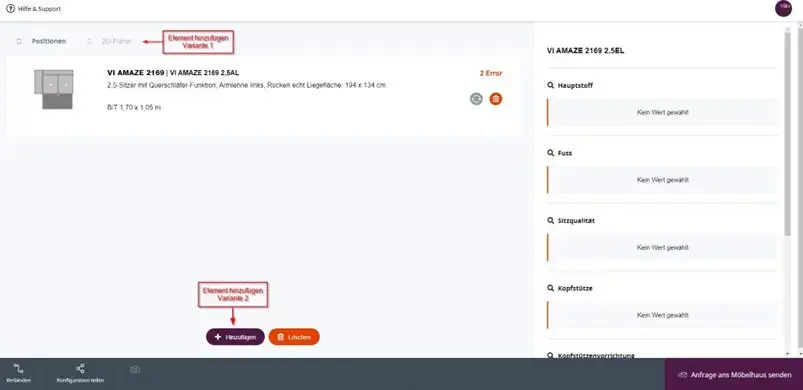
The configurator then shows the following image:

csm_configurator_view_dcba5f46e0

From here, you can add further elements either via the 2D planner or via the Add button.
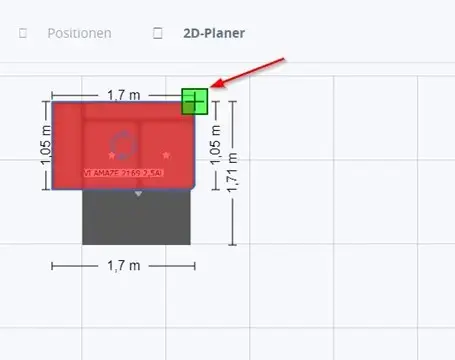
When using the 2D planner, this is done as follows:

csm_2D-Planer_5afd8cc6fe

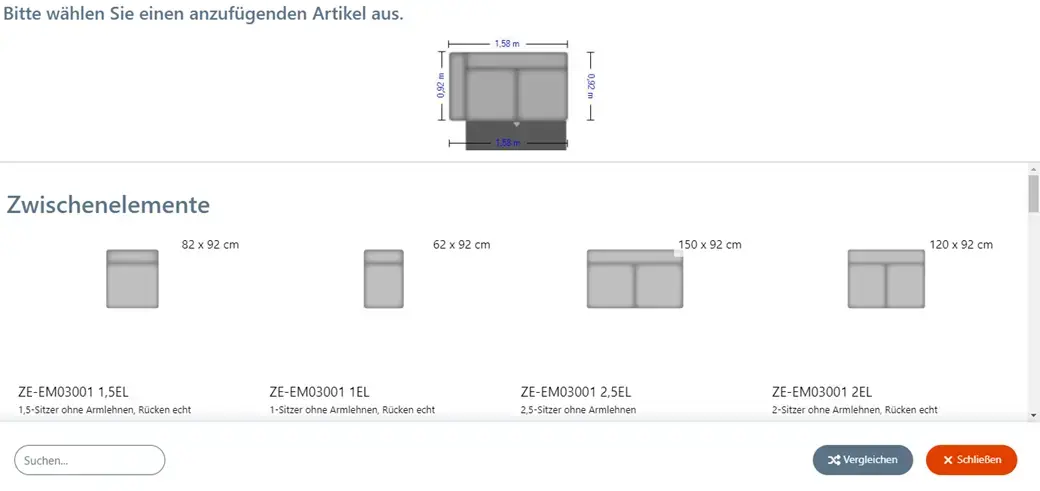
Click on the green plus sign to open a list of suitable connection elements, from which you can then select the desired one. You can then add further components until the configuration is complete.

csm_Element_hinzufuegen_99c9e48418

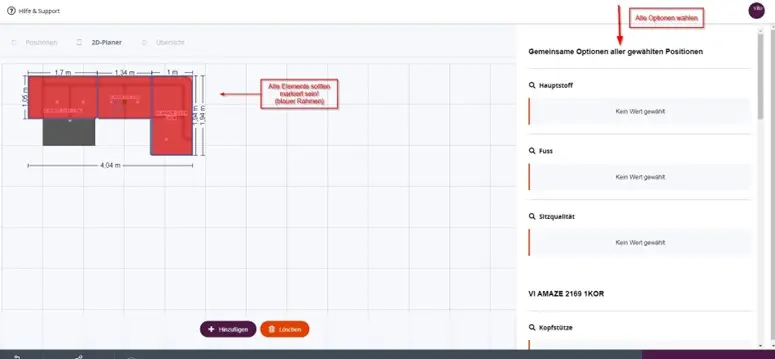
The corresponding options for cover, feet, etc. can then be selected.
By selecting all components (blue outline visible in the 2D planner), the options are set for the entire configuration. If only one element is highlighted in blue, the options only apply to that element.

csm_2D-Planer_Optionen_f155eede09

Step 5: Manually creating a configuration from the store backend

Once all options have been selected and there are no more configuration errors (the errors are displayed behind each element in the "Items" view), the configuration can be saved on the product. If intended, it is also possible to adopt incomplete configurations.

csm_finished_configuration_a75bd3918e

This is done by clicking on the "Apply" button in the bottom bar.

csm_takeover_bde6daa78f

The Shopware backend will now open again on the product page you have just configured.

You can also use the "Fix configuration" tab to ensure that no further products are added to the configurator. To do this, the "Add" and "Delete" buttons and the 2D planner in the configurator are hidden.

The "Unconfigured not available for purchase" tab ensures that the "Add to cart" button is not displayed on the product page in the store and the product must first be configured in the XcalibuR configurator before it can be purchased.

To make further settings, click on the button. Further settings can now be made in the menu that opens. The most important of these are

  • "Restrictions" → Here you can limit which elements are available to the customer when adding, e.g. only those of the same model ("Restrict to model") The catalog or the manufacturer are also possible here.
  • "Product selection settings" → If you want to hide the display of the selected manufacturer, catalog and model from the end customer, you should activate the respective sliders.

Once you have made all the entries and saved the values, the settings should look like this:
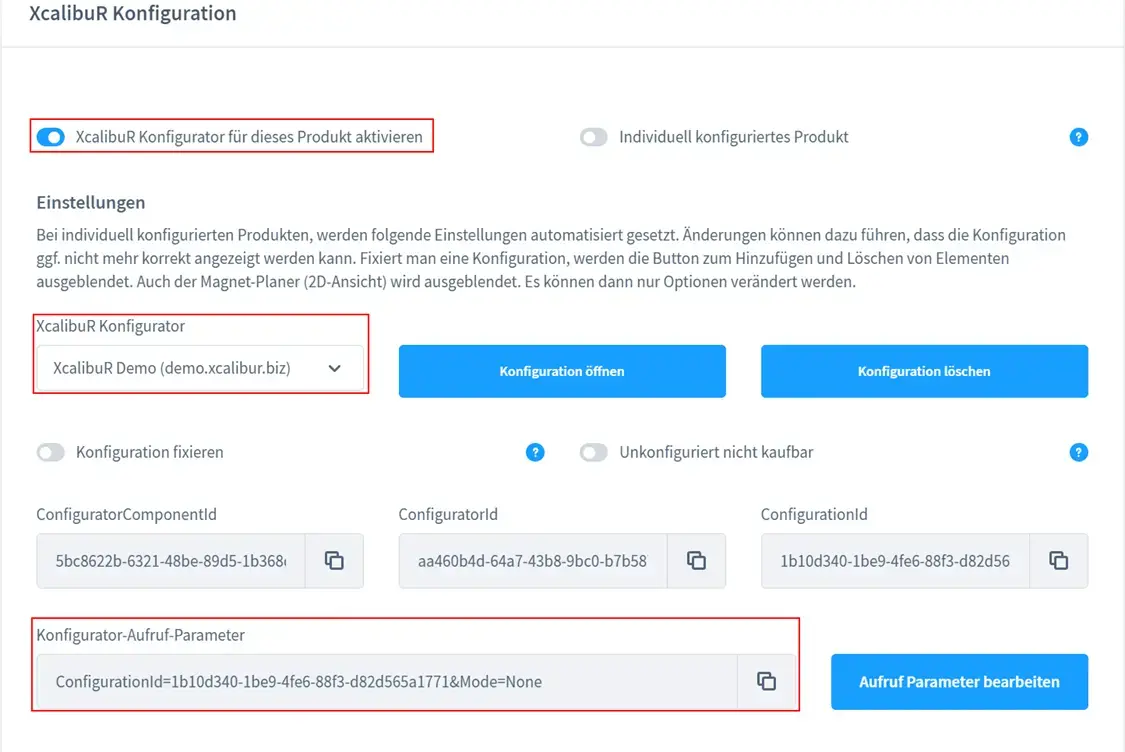
csm_configuration_settings_finished_a792c284b8

Confirm with "Save" and the configuration is now available in the front end of the store on the product.