

Skip to content

Instructions: Configuration of the video settings

Documentation: XcalibuR configurator plugin for Shopware 6


This guide explains how you can integrate video tutorials into your configurator as an explanatory aid for the XcalibuR configurator.

By default, only the integration of YouTube videos is supported. You should therefore ensure that your videos have been uploaded to YouTube before following the steps in these instructions. If you would like to integrate your video tutorials from other platforms (Vimeo, CDN, etc.), please get in touch with your burgdigital contact person.

Step 1: Opening the plugin settings in the Shopware backend

After opening the plugin settings (XcalibuR → Settings) in the backend of the store, you will find all the necessary configuration settings on the "Help video settings" tab.

Step 2: Activate the "Here we go" button & enter the URL

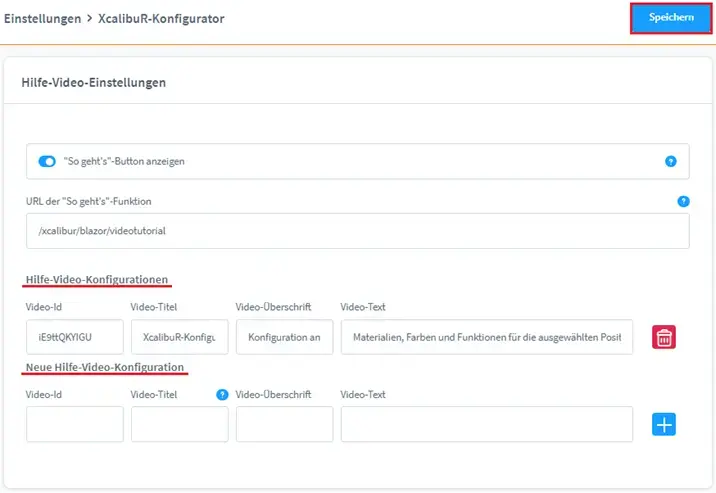
In the front end of the store, the videos are accessed via the "How to" button under "Help & Support". In order for this button to be displayed in the configurator, it must be activated via the corresponding button in the store backend.

csm_help-video-settings_d32c5af48c

In the "URL of the "How to" function" input field, enter the page that is to be called up when the "How to" button is clicked. By default, this is: "https://meine-domain.com/xcalibur/configurator/videotutorial"

Step 3: Saving the video configuration

In the next and final configuration step, save the relevant information data for the respective video. The required data includes

  • Video ID (by default: YouTube ID)
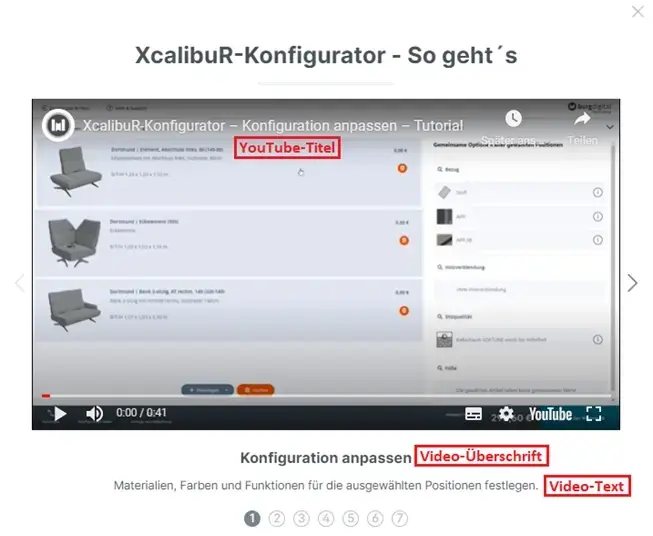
  • Video title (SEO-relevant, i.e. only displayed in the source code and not in the store frontend)
  • Video caption (displayed below the video that is shown)
  • Video text (is displayed below the displayed video, below the video headline)

Now enter the ID, title, headline and text of the video in the corresponding fields under the section "New help video configuration" and confirm your entry by clicking on the plus button. You can now add as many videos as you like in this way.

csm_help-video-settings__large__bb6170dceb

The added video data is now listed under the "Help video configurations" section, which can be removed again using the icon.

To finally save the changes you have made in the plugin settings, click on the save button in the top right-hand corner.

Step 4: Opening the video tutorials in the store frontend

If all configuration settings have been made accordingly, the videos will open automatically the first time you start the configurator in the frontend. If you would like to watch the video tutorials again at a later time, click on the "How it works" button under "Advice".
csm_So-Gehts_c77efebdfb

You can navigate between the videos either using the right and left arrow keys or using the circled numbers below the video, which also symbolize the number of videos stored.