
IMPORTANT:
Your products can either be provided with an XcalibuR configuration via import at database level (see documentation on the import parameters) or created manually using the following steps.
- Open the menu item
 →
 in the Shopware backend.
- Now you can either select an existing product without XcaliburR configuration or create a new product via
 .
- Once you have configured your product in general, you can now continue with the XcalibuR configuration at product level. (when you are finished, save via
 )
XcalibuR configuration
Activate XcalibuR configurator for this product
Activate the slider to activate the XcalibuR configuration for this product.
Tip: This slider can be used to deactivate the XcalibuR configurator for individual products during operation without losing the settings.
Individually configured product
This slider is automatically set by the system for products that have been created by a customer in the XcalibuR configurator. Activating the slider also means that the following settings cannot be changed manually. You should not change this slider!
XcalibuR Configurator
Select the desired XcalibuR configurator for the respective product. The XcalibuR configurator must have been stored beforehand.
By clicking on  , you can edit the configuration you have already created or, if no configuration has been linked yet, create a new one via
 .
If you would like to remove your existing configuration for this product, click on  .
Fix configuration
If you only want the current piece of furniture to be able to be changed in the configurator and no new furniture can be added or deleted, activate this slider. The 2D planner is also deactivated so that only the positions and the 3D display are shown.
Unconfigured not available for purchase
This slider means that the "Add to cart" button is not displayed on the product page in the store and the product must first be configured in the XcalibuR configurator before it can be purchased.
ConfiguratorComponentId
If a configuration has already been set up, the ConfiguratorComponentId is stored here and can be retrieved.
Configurator call parameters
If a configuration has already been set up, the configurator call parameters are stored here and can be called up.
If you want to adjust these, press the  button.
The following parameters can be changed:
Display mode
You can use the display mode to select the form in which the XcalibuR configurator is displayed. The selection options are:Standard- Default setting for the XcalibuR configurator.
Configuration wizard- The configuration process is guided step by step.
App mode (with start page)- Displays the start page of the configurator.
Product selection- If the configurator is started with an empty session, the product selection opens automatically instead of displaying an empty session.
Standard display
Select the view that should appear as the start page when you open the configurator. You can also use the numbering to select so-called fallbacks, e.g. if there is no 3D view, the 2D view is displayed (see image). 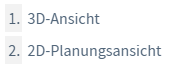
Restrictions
Here you can restrict the configuration, i.e. the user can only work at model, catalog or manufacturer level and cannot change these. This ensures that a user does not have access to catalogs or manufacturers that should not be public.
Configuration wizard settings
All settings only become active if "Configuration wizard" has been selected under Display mode.
- Final page of the configuration wizard
Select the page to be displayed after successful configuration. For more information, seeStandard display.
Skip confirmation step in the configuration wizard
Activate this slider so that the user does not have to see and confirm this again in the configurator at the end of the configuration wizard. The final page of the configuration wizard is then displayed directly after all steps and the configuration wizard is closed.
Maximum number of elements in the product list in the configuration wizard
Here you can select the maximum number of displayed elements in the product list. Numerical values such as 5 or 20 are permitted.
Example: With a value of 3, only three elements are displayed.
Product selection settings
You can also decide in your configurator whether certain functions or displays should be hidden in the product selection (when adding new products). Activate the sliders to hide the respective selections. The selection options are as follows:
Hide impressions in the product selection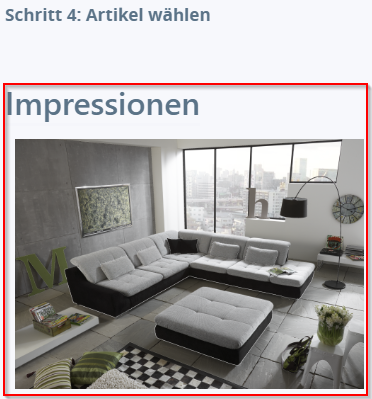
Hide the configuration wizard in the product selection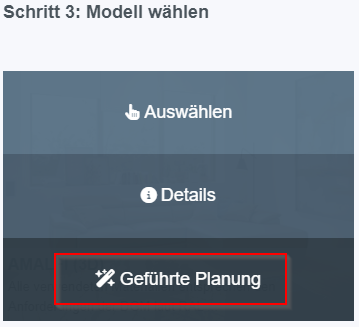
Hide manufacturer logo and name in product selection
Hide catalog logo and name in product selection
Hide model logo and name in product selection
Configurator design
Here you can again enter an individual design at product level in the form of a design name (for a design created by Diomex) or the complete URL to a stylesheet file (CSS).
Important: This setting only changes the design for the specific product.